


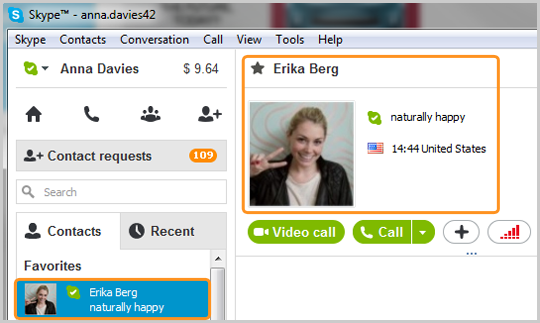
Step 2. Launch Free Video Call Recorder for Skype

Follow
Start > All Programs > DVDVideoSoft > Programs > Free Video Call
Recorder for Skype or just click the DVDVideoSoft Free Studio icon on the desktop.
The
interface is rather simple and self explaining. There are buttons to
start/pause/stop the recording and the list of recording modes to choose from.
Step 3.
Select Mode

Choose one
of the available modes from the drop-down list: record all sides, record other
side only, record audio only.
Step 4.
Select Output Folder

Click the “Browse...” button to select the output folder.
Step 5.
Record Call

Start a
Skype call. After that click the Start button.
Step 6.
Stop Recording

To stop the
recording, use the buttons Pause/Stop.
Step 7.
Find Output Files

Open the output folder by clicking the “Show in folder”
button.


0 comments:
Post a Comment